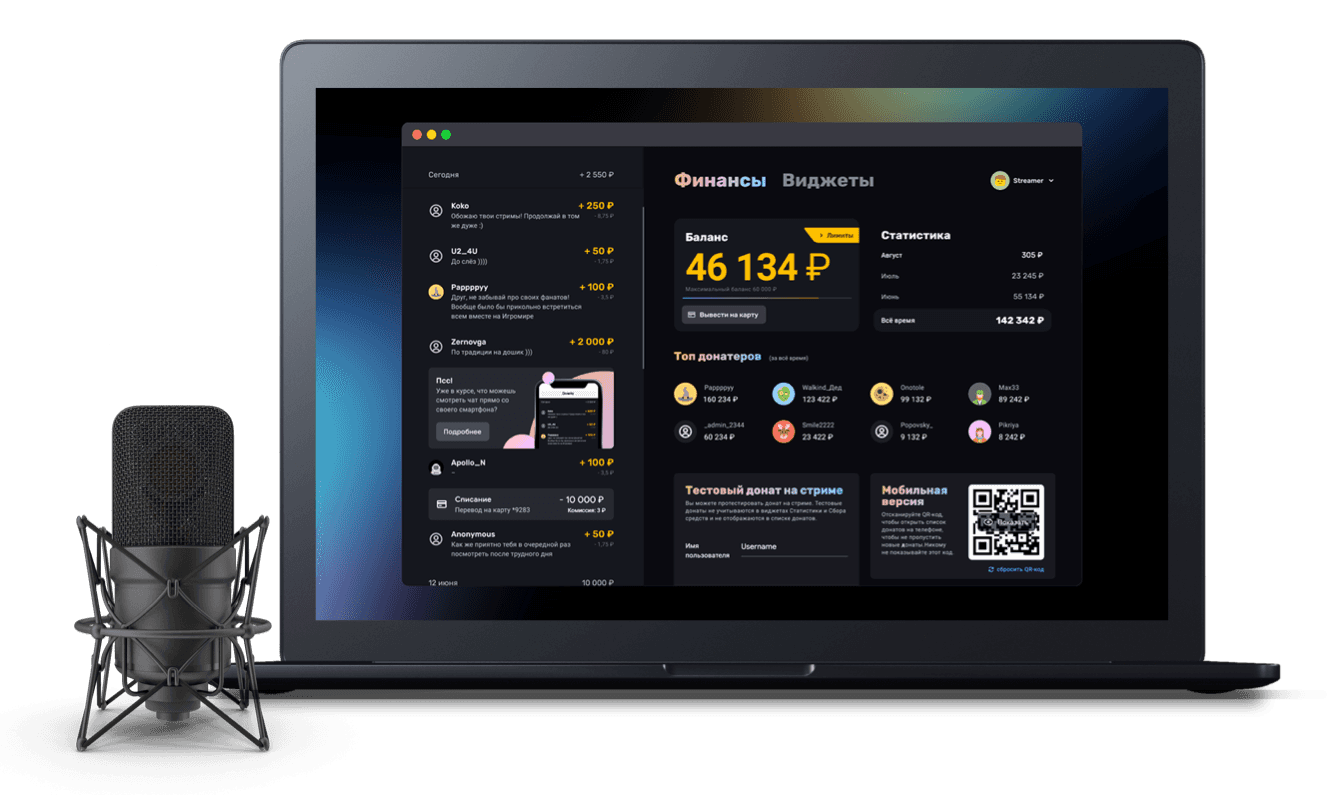
How to connect Donation Alerts fundraising to the Donatty goal bar
Adding up the amount raised in Donation Alerts goals and Donatty donations in a single goal bar
If you are raising money for one goal in both Donation Alerts and Donatty, the Donatty goal bar can show the combined total. It is calculated as the amount raised in your Donatty goal plus the amount raised in the Donation Alerts goals you select. Amounts in other currencies are converted to roubles at the current Central Bank rate.
To set it up, you need to:
Connect Donation Alerts as a data source;
Enable Donation Alerts goals in the Fundraising widget;
Choose which DA goals to count;
Show the bar on your stream.
Important: Donation Alerts as a data source works on the PRO subscription.
Connecting Donation Alerts as a data source
We explain how to connect Donation Alerts in the guide How to connect Donation Alerts to Donatty. The question about transferring your history does not affect the goal bar: Donation Alerts sends the goal amount itself.
Enabling Donation Alerts goals
Open the Fundraising widget settings and, in the Data sources block, click Goals under Donation Alerts.
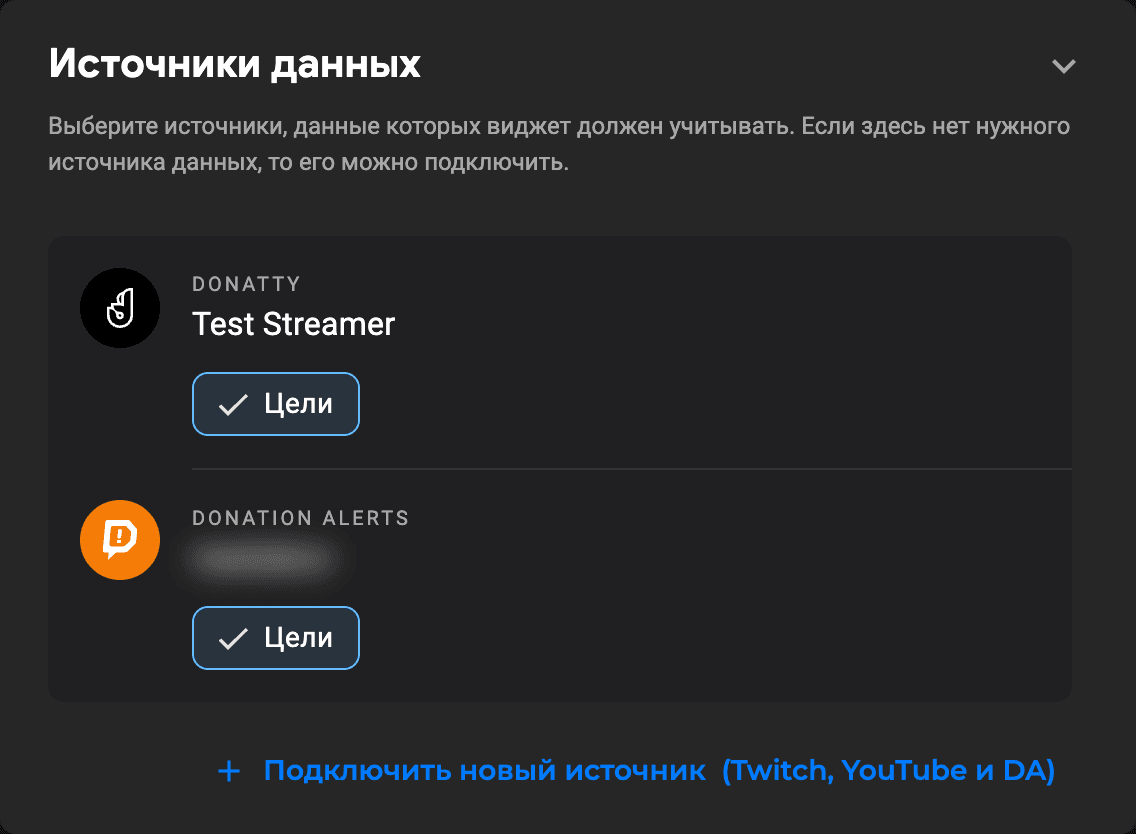
If the bar should show only the fundraising in Donation Alerts, turn off Goals under Donatty.
Choosing Donation Alerts goals
In the Conditions block, a goal selector will appear under Donation Alerts:
All goals — the bar counts all active Donation Alerts goals, including any you create later;
one or several specific goals — the bar counts only those.
You can only select an active goal. If a goal in DA has ended, or there is no Central Bank rate for its currency, the text “The goal is inactive or there is no rate for its currency” appears next to it.
Important: Donation Alerts sends us data about a goal only when the goal changes: a donation came in or you edited it. So right after you connect, the goal list is empty and reads “Waiting for goal data from Donation Alerts”.
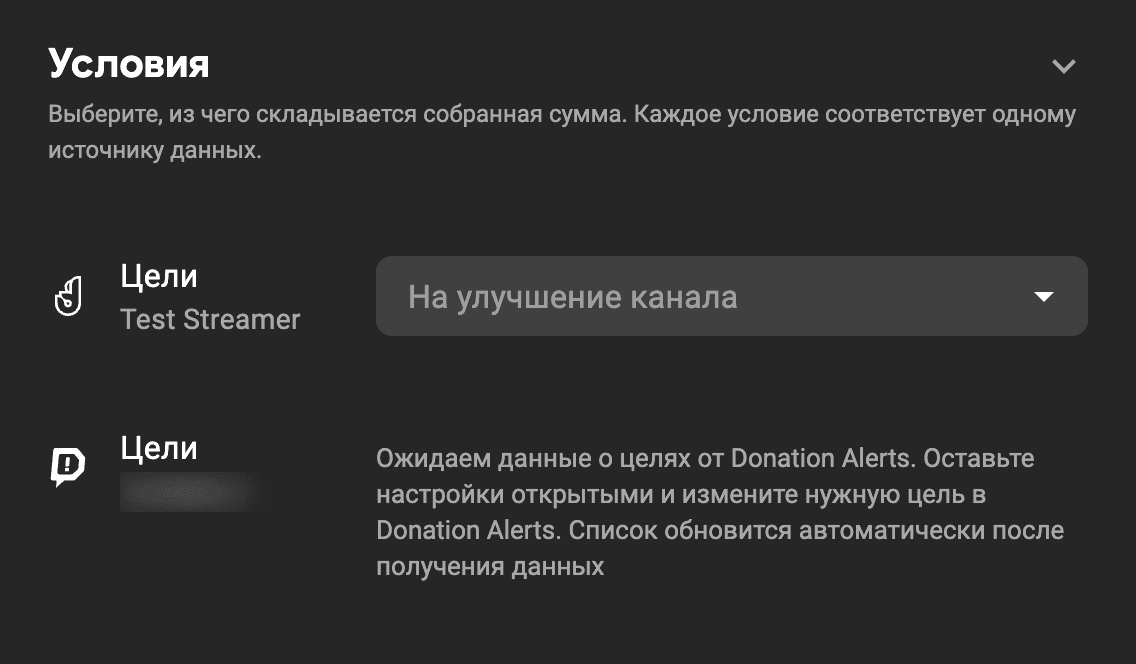
To make a goal appear in the list, keep the widget settings open and change the goal in Donation Alerts — for example, edit its description. The list will update by itself, usually within 15 seconds — you do not need to reload the page. The same goes for a new goal: it will appear in the list after its first donation or after you edit it.
Target and starting amount
Fundraising goal and Start fundraising from are taken from the Donatty widget settings, as before. The target amount from Donation Alerts is not carried over to the bar — only the amount raised in DA goals is added to it.
Adding the goal bar to your stream in OBS
Once the widget is configured, copy the widget link. You will find it at the top of the widget settings screen, with the copy button to the right of the link field.

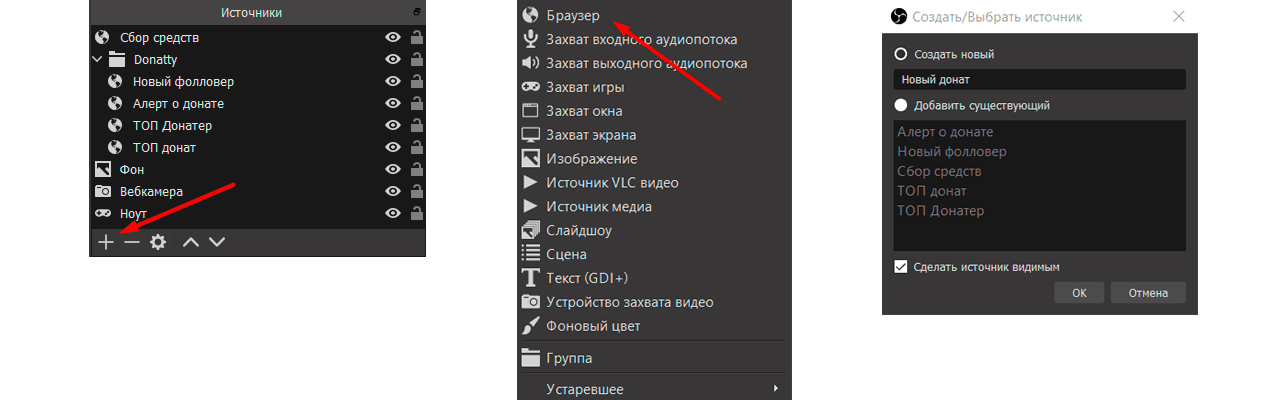
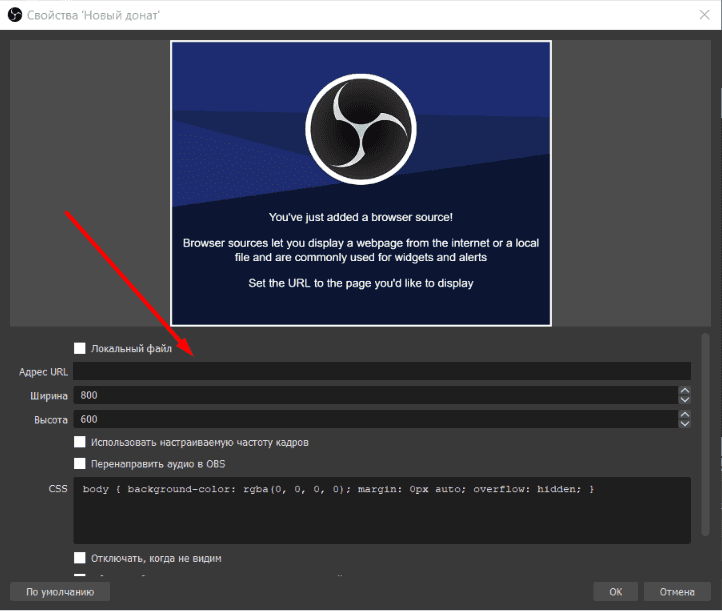
Then go to OBS, click Add in the Sources panel, choose Browser and enter a name for the source, for example “Goal bar”. In the dialog that appears, paste the link you copied earlier into the URL field and click OK.
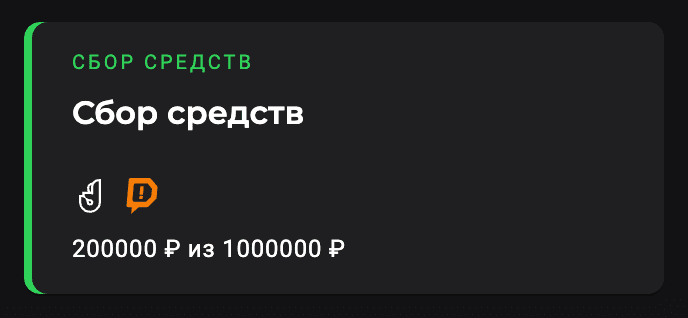
A Donation Alerts icon will appear on the widget card in the Widgets section.
When the amount from Donation Alerts updates
The amount from Donation Alerts on the bar updates when a goal changes in DA, and only while the bar is open in OBS or the widget settings are open.
Important: if a donation to a Donation Alerts goal came in while OBS was closed, the bar will show the previous amount. The new amount will appear the next time that goal changes in DA — the next donation to it or an edit — while OBS is open.